
CSV Desk Excel Keeps Changing My CSV Data
Excel Keeps Changing My CSV Data
A postcode of 01234 comes back as 1234. A product code of SEPT1 comes back as 1-Sep. The file was fine, and the spreadsheet changed it on the way in.
What is happening
A CSV has no types. Every field is text, and any meaning beyond that is guessed by whatever opens the file.
Excel and Numbers guess eagerly, because they were built for people typing numbers into cells. Three guesses cause nearly all the damage:
- Numeric.
01234is read as the number 1234, and the leading zero has nowhere to live. Postcodes, account numbers and product codes lose their padding. - Floating point. A number with more than 15 significant digits does not fit.
1234567890123456becomes1.23457E+15on screen and1234567890123450in the data. Credit card numbers, IMEIs and long database keys are all in this range. - Dates.
3-4becomes a date. So doesSEPT1, which is why the people who name human genes renamed several of them in 2020 after years of spreadsheets corrupting the old names.
Opening the file does not damage it. Saving does, because the spreadsheet writes out what it decided the values were.
The fix inside Excel
Do not double-click the CSV. Import it:
- Data ▸ Get Data ▸ From Text/CSV.
- In the preview, select each column that must stay as written.
- Set its type to Text.
- Load.
This works. It also has to be done every time, for every file, and one forgotten column is enough to lose a column of codes.
The fix in Numbers
Numbers lets you adjust the encoding and the separator when it opens a file. It does not let you set a column to text, so the guessing still happens, and its export writes Numbers’ own formatting rather than the file you started with. For data that has to survive intact, it is not the right tool.
Opening it without the guessing
CSV Desk keeps every value as text from import to export. There is no type inference step to opt out of, because there is no type inference on the values.
01234stays01234.- A 16-digit number keeps all 16 digits.
3-4stays3-4.- Export writes back the same delimiter, quoting, encoding and line endings the file came with.
Types are still detected, but only to describe the column in the statistics panel. A column labelled Numeric is a statement about what is in it, not a change to what is stored.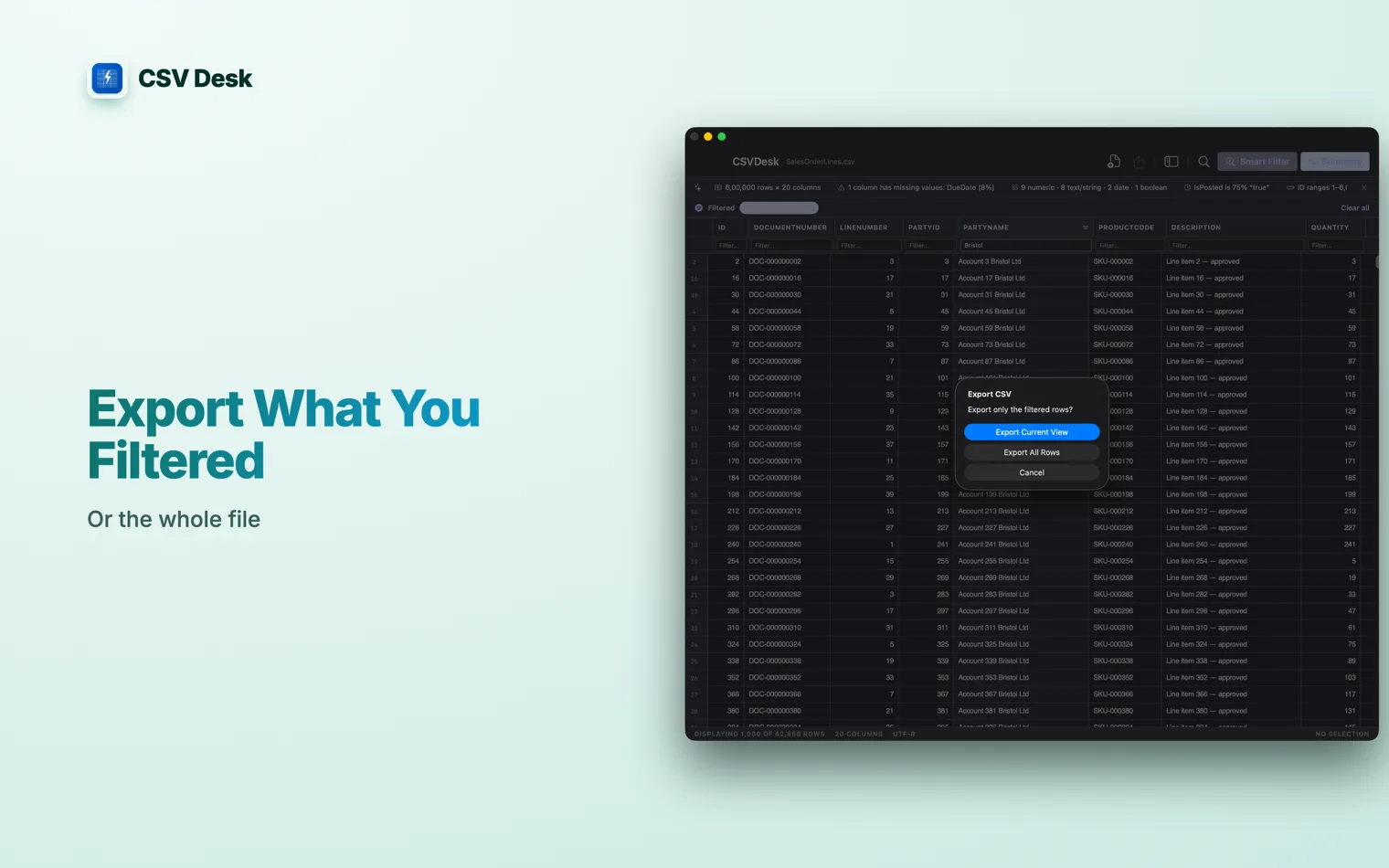
If a file has already been through Excel
Check before you trust it. Sort the suspect column and look at the shortest and longest values, or filter for anything containing Because it reads the field as a number, and 00123 and 123 are the same number. The zeros are a property of the text, and the text is what Excel discarded when it decided the column was numeric. Import the column as Text and they stay. Anything longer than 15 significant digits goes into a floating point number that cannot hold it. The display switches to scientific notation, and the digits past the fifteenth are replaced with zeros. Saving from that state writes the damaged value back to the file. Do not double-click the file. Use Data ▸ Get Data ▸ From Text/CSV, and in the import step set every affected column to Text before loading. It works, and it has to be repeated for every file. Not by opening it. The damage happens when you save from the spreadsheet, because it writes what it holds in memory. If you have not saved, close without saving and the file on disk is untouched.E+. If IDs have lost their last digits, the digits are gone from that copy and the original export is the only place they still exist.Questions
Why does Excel remove leading zeros from a CSV?
Why does Excel turn my ID into 1.23457E+15?
How do I stop Excel converting CSV values?
Is the original CSV file damaged?